VS Code is where we’ll spend most of our time. It is an editor, which means it helps you work with text files. Python is still the tool that runs the program; VS Code doesn’t replace it.
Files, Folders, and Projects
A file stores something, such as the Python instructions in main.py. The
.py ending tells us it is a Python source file. A folder groups files, and
folders can contain other folders. A project is the collection of files that
belong to a program. Open the entire project folder in VS Code so related files
are available together.
Later, student-work/foundations/main.py will mean: inside the project, open
student-work, then foundations, then the file main.py. That is a path.
We show paths with forward slashes; Windows also displays backslashes.
Important Parts
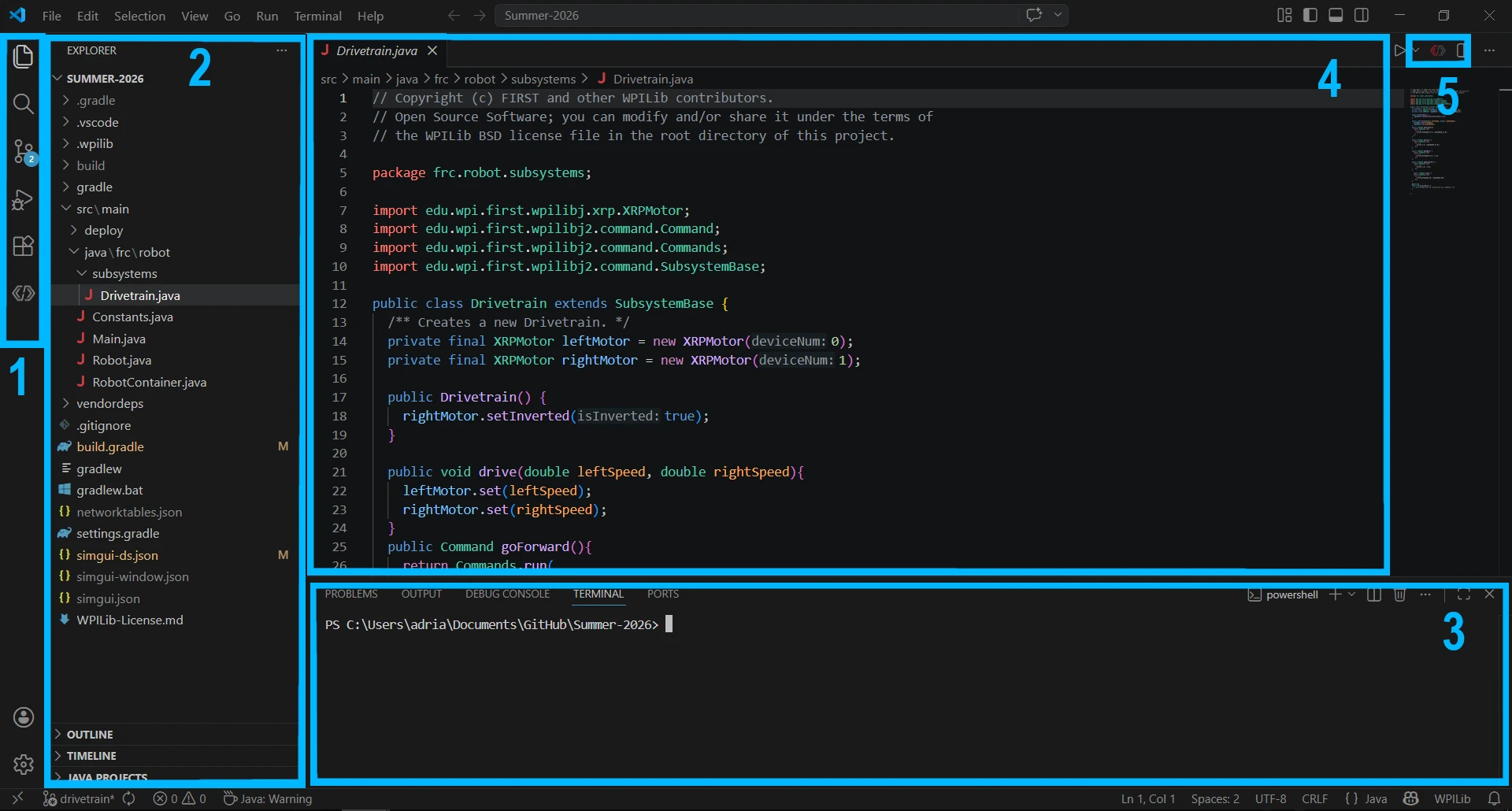
1. Activity Bar: the strip of icons on the far left. The branching icon opens Source Control; later it shows changes tracked by Git.
2. Explorer: the file tree beside those icons. Click a filename to open it in the editor.
3. Terminal: open it with Terminal → New Terminal. Commands and their output appear here.
4. Editor: the main area, where you type and read code. Tabs switch between files.
5. Editor controls: buttons for actions such as running code and splitting the editor. The available buttons depend on the file and installed extensions.
This screenshot uses a Java project to show the layout. Your Chiron files will look different, and you don’t need to understand the code shown here.
Open the Command Palette with Ctrl+Shift+P, or Cmd+Shift+P on macOS. It is a searchable list of editor actions, separate from the numbered controls.
Try opening the Command Palette, type Color Theme, and press Escape to leave it.
You don’t have to remember every menu location when you can search for an action.
Saving

A dot on a file tab means it has unsaved edits. Use Ctrl+S or Cmd+S to save. Running a file usually runs the version saved on disk; an unsaved change can make it look like Python ignored your edit.
The terminal also has a working directory, meaning the folder in which its
commands start. Our commands assume that folder is the root of Chiron: the folder
containing requirements.txt, examples, and course. If a command says it
cannot find a file, check which folder you opened and where the terminal is working.
Trust Prompts
VS Code may ask whether you trust a project folder. Trust enables features that can run its code. For your own clone of this course, check that the folder really is the expected Chiron repository before trusting it. You do not need to trust every folder downloaded from the internet.
You don’t have your project folder yet; that comes after a short explanation of Git and GitHub. Keep VS Code installed and open.